Searching for Current On-Call Assignments for a Person or On-Call Group
The on-call assignments for an on-call group or for an individual can be displayed in the Person Assignment screen. The default date range for the screen is for the current month, beginning with the current date and time and ending 30 days later. The assignments that are currently active display with a green background.
The on-call assignments can be searched for by date, individual name, individual messaging ID, or on-call group messaging ID. You can search using only one search criterion or a combination of any of the search criteria. Note that only the on-call assignments that match all of the search selections are included in the search results.
The search time period can be changed from the default time period. You can enter the new start and end dates and times manually or use the calendar button to select a new date.
1. Access Smart Web.
2. Choose the On-Call tab.
3. Choose the Person Assignment tab and log in if required.
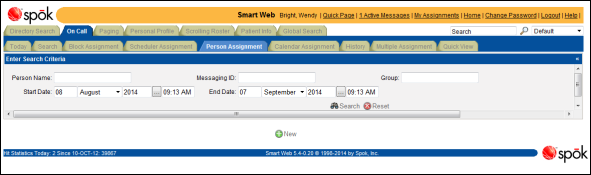
4. The assignments displayed can be limited by individual, on-call group, or both.
a. Enter the search strings for the person’s name and/or messaging ID in the Person and/or Messaging ID fields. These fields work together, so only the records that match both entries are displayed.
b. An entry for the on-call group name or messaging ID can be entered in the Group field. If you did not enter any person name search criteria all of the assignments for the specified on-call group(s) will be returned.
c. Click the Search button to display the on-call shift assignments for the specified person or people.
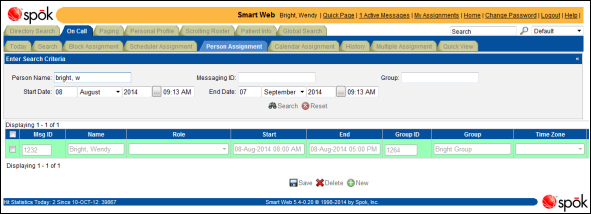
5. The search date can be changed by changing the start and end dates.
a. In the Start Date fields, manually enter a new date. You can also click the calendar button to select a date from a calendar.
b. In the Start Date time field, enter a new time. Be sure to specify AM or PM. The time format is HH:MM AM.
c. In the End Date fields, manually enter a new date. You can also click the calendar button to select a date from a calendar.
d. In the End Date time field, enter a new time. Be sure to specify AM or PM. The time format is HH:MM AM.
e. You can revert back to the default date range by clicking the Reset button.
f. Click the Search button to display the on-call assignments for the selected time period.